
- PowerPoint is a key presentation program from Microsoft in education and business.
- It allows you to create slides with text, images, videos and animations easily.
- Its history and evolution have set the standard for digital presentations since 1987.
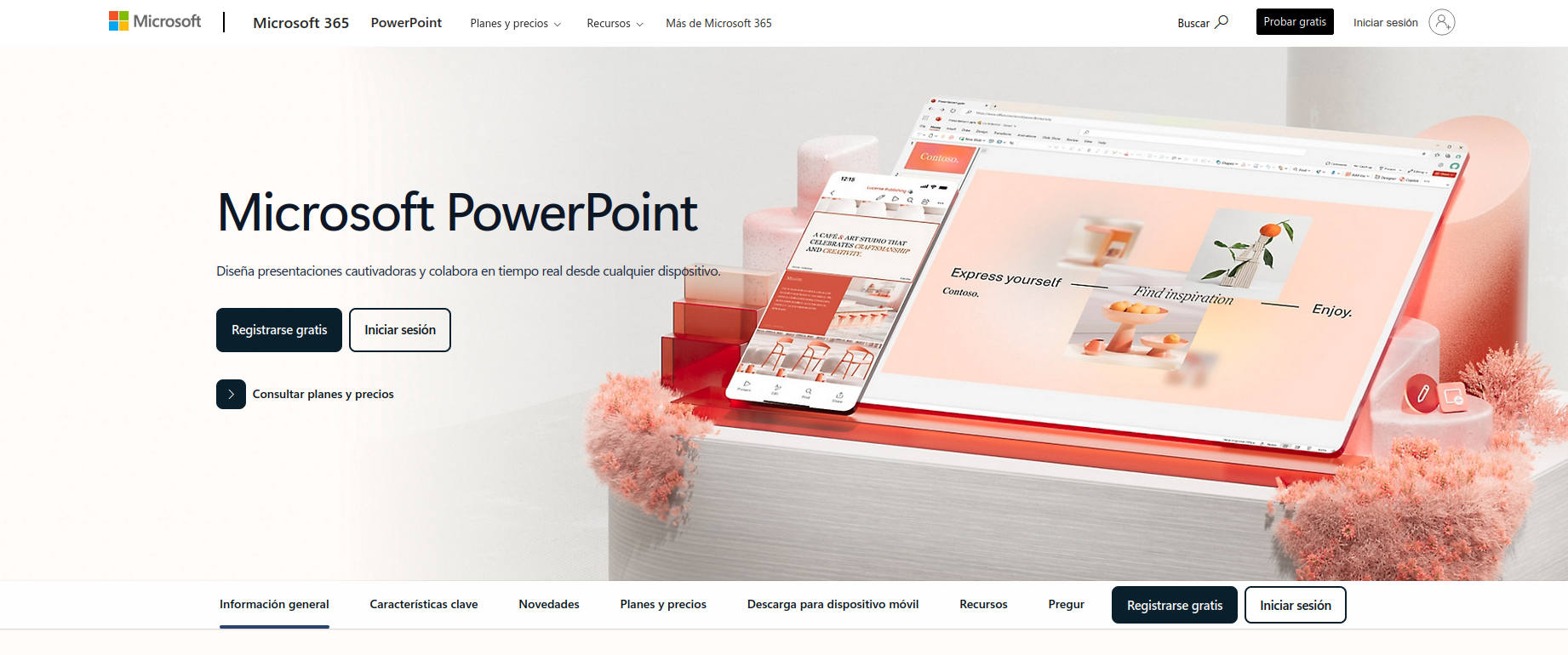
Power point, a name that almost all of us are familiar with because we've used it in class or seen a presentation, is much more than a simple presentation application. In this article, you'll learn everything about this tool: what it's used for, how it's evolved, its main functions, tricks, real-life uses in educational and professional settings, and why it remains the world's leading tool for creating visual presentations.
Did you know that PowerPoint wasn't originally part of the Office suite? Or that you can even insert 3D models and video recordings? Here you'll find everything from interesting historical details to useful tips, including simple explanations of each feature and the reasons why it's still essential. Get comfortable and consider why it's important to master PowerPoint in the 21st century.
What is PowerPoint really?
PowerPoint is, first and foremost, a computer program developed by Microsoft that facilitates the creation of slide presentations. This means that You can combine text, images, graphics, videos, sounds, and various visual effects in a sequence of "screens" or slides that are displayed in an orderly manner., whether in a meeting room, a classroom, or even online.
The advantage of PowerPoint is that you don't need to be a graphic designer. Thanks to its intuitive interface and the number of predefined templates and designs, Anyone can visually structure their message in an attractive and professional manner., without great technical knowledge.
Of course, PowerPoint is integrated into the Microsoft Office suite, along with Word, Excel, Teams or OneNote, but since its inception it has had a life of its own, and its evolution is closely linked to how we communicate today in companies, universities and practically any area where it is necessary to share ideas or results.
A bit of history: the origins of PowerPoint
The history of PowerPoint dates back to the mid-80sIn its early days, the program didn't even belong to Microsoft. It was created by a small team of developers in California under the company Forethought, Inc., and was originally called "Presenter." It was designed for Macintosh computers, which was already quite risky at the time.
The main developer, Bob Gaskins, along with Dennis Austin and Thomas Rudkin, had a hard time finding investors, as the concept of presentation-specific software was not yet established. However, after two years of development and negotiations, Microsoft saw the potential and in 1987 acquired Forethought for no less than 14 million dollars. Was the Bill Gates' company's first major strategic acquisition, and unwittingly became the seed of Microsoft's hegemony in the software world.
The renamed "PowerPoint" finally appeared in 1987 for the Macintosh and shortly after for Windows, in extremely basic versions: it only allowed the creation of black and white slides with simple text and figures. However, its growth was dazzling, becoming in just a few years the world standard for visual presentations. Already in the 90s, with the appearance of Office 3.0 and Windows 3.0, PowerPoint began to stand out for its graphical features, the ability to integrate images and animations, and, soon after, multimedia options such as video and audio.
What is PowerPoint used for?
The answer may seem obvious, but PowerPoint It's not just for making class presentationsIts possibilities are much broader:
- Academic and educational exhibitions: Both for teachers, who present complex lessons and concepts visually, and for students who must defend papers or projects in front of the class.
- business presentations: An essential tool for meetings, business proposals, performance reports, internal training, and even product launches.
- Marketing and salesFrom campaigns to product presentations to clients, including market data analysis and business strategies.
- Personal usesSome people use PowerPoint to prepare photo albums, invitations, creative resumes, or even to organize trips and events.
- Creation of visual materials: It can currently be used to design banners, social media images, simple infographics, and posters thanks to the versatility of its tools.
Mastering PowerPoint means being able to convey ideas effectively, persuasively, and visually appealingly., which translates into more professional and personal opportunities.
What is a slide in PowerPoint?
The core of PowerPoint is the slide. Each presentation consists of a series of slides., which function as independent "pages" within a single document. You can place, move, and edit text, images, shapes, graphics, videos, audio, and other elements in them.
The structure and order of the slides is essential for the message to be conveyed clearly and progressively. In the presentation design you can choose templates, color themes, transitions and visual effects that help capture attention and facilitate understanding.
Main features of PowerPoint
PowerPoint's features have grown and improved with each release. Here are the most relevant and current ones:
- Templates and Themes: You can start from scratch or choose from dozens of pre-designed templates that include color schemes, font styles, and page layouts. You can also customize them or download them from the official website. ecosystem.
- Simple editing and design: Drag, drop, and edit elements easily. The interface is designed so that any user, even beginners, can create attractive presentations in minutes.
- animations and transitions: Allows you to give movement to texts, images and objects, as well as apply transitions between slides to make the presentation more dynamic.
- Multimedia integration: Insert videos, audio, interactive graphics, links, and even 3D models (in newer versions). You can also record narration or export your presentation as a video.
- Collaboration tools: From Office 365, PowerPoint allows multiple people to work on the same presentation in real time, easily share it in the cloud, and maintain file versions.
- Image and graphics editing: : You don't need to leave the program to retouch images, add filters, remove backgrounds, crop, or create advanced SmartArt-type graphics.
- Presentation and control: It has reading modes, partial presentation, full presentation and other views to control what the audience sees at any given time.
- Accessibility and personalization: Includes options to make reading easier for people with visual impairments, automatic translation, subtitle insertion, and other inclusive tools.
- Autosave and compatibility: OneDrive integration and auto-save, plus support for legacy formats and other platforms (you can export to PDF, JPEG, video, etc.).
Key elements of the PowerPoint window
When you open PowerPoint, you'll find a window that may seem full of options. Its main elements are:
- Title bar: Where the file name and program appear.
- Options: It is made up of tabs (Home, Insert, Design, Transitions, Animations...) that group the buttons of the main functions.
- Groups and command buttons: Allows you to execute quick actions or open additional options menus.
- Quick-access tool bar: You can customize shortcuts to features you use a lot, such as saving or undoing changes.
- slide panel: Displays a thumbnail of each slide and allows you to change their order by dragging.
- Status Bar: Reports the current page, language, or zoom.
- Presentation views: Allows you to quickly switch between normal view, slide sorter, reading, or full-screen presentation.
How to create a presentation from scratch?
The process is very simple and always flexible:
- Open PowerPoint and choose whether you want to use a template or a blank document.
- Customize the colors, fonts, and background if you wish.
- Start adding slides according to the structure of your talk or message.
- On each slide, insert text, images, videos, charts, tables, or any other resources.
- Add transitions and animations if you want to make it dynamic.
- Save the document to your PC, the cloud, or export it in any format you need.
Practical advice: If you need to make a spectacular presentation but you have little time or little design knowledge, take advantage of templates and the PowerPoint Designer, a feature that automatically suggests visual enhancements.
Technical characteristics and versions over time
PowerPoint has evolved a lot since its creation. Each version has introduced significant improvements. Here's a rundown of the most significant ones:
- PowerPoint 1.0 (1987): For Macintosh, very basic, black and white.
- PowerPoint 2.0 (1988): : Custom colors and templates appear, graphics import options from Adobe Illustrator and Aldus Freehand.
- PowerPoint 4.0 (1994): Introduces new presenter assist features and compatibility between Mac and Windows.
- PowerPoint 95: Includes multiple undo commands, Visual Basic support, advanced animations, and improved menu management.
- PowerPoint 98: Compatibility between Mac and Windows almost perfect. The PowerPoint Viewer appears.
- PowerPoint XP/2002: Introduces the task pane, document review, and improved templates.
- PowerPoint 2007/2010: New XML-based file formats (.pptx), increased compression, macro detection, privacy, and new graphical features.
- PowerPoint 2013/2016: Real-time collaboration, slide sections, cloud integration, and version saving.
- PowerPoint 2019/2021 and Office 365: Incorporation of 3D models, advanced collaborative editing, automatic saving to OneDrive, and greater multimedia integration. Live presentation streaming via the web is now possible.
Each iteration has made PowerPoint a more flexible, powerful tool, adapted to new digital challenges, even allowing you to open and export files in alternative software formats such as LibreOffice Impress or Google Slides.
Advanced PowerPoint Tools and Features
One of the reasons PowerPoint is still relevant is its technical improvements and the incorporation of advanced tools:
- SmartArt: Allows you to create complex diagrams and visual schemes from simple text.
- Models 3D: Insert and manipulate three-dimensional objects to illustrate concepts in innovative ways.
- Recording presentations: Record your voice, pointer movements, and the time spent on each slide to rehearse or share your entire presentation.
- Editing and exporting images: Crop, remove backgrounds, add effects, or convert a slide to an image with just a few clicks.
- Export to video: Convert your presentation into a .mp4 or .mov video, adding animations and audio.
- Collaboration and comments: Work online with others, leave notes, and manage versions with ease.
- Advanced transitions and animations: Controls the entry, exit, and emphasis of elements on each slide.
- Hyperlinks and interactive navigation: Create non-linear presentations, interactive menus, and alternative paths within a single file.
Innovative uses of PowerPoint in education
Beyond the traditional slide presentation, PowerPoint is now used for teaching strategies such as:
- GamificationBy adding cross-hyperlinks between slides, you can create quizzes, quizzes, or interactive classroom activities.
- Flipped classroom: Students can conduct research and prepare presentations on a topic before the teacher presents the theory, promoting active learning.
- Collaborative work: Presentations built by several people, distributing slides among students or teams.
- Digital Portfolios: Students can synthesize their learning and collect evidence in a PowerPoint file.
- Creating visual resources: Mind maps, diagrams, storyboards, infographics and even illustrated comics.
PowerPoint also allows for traditional lectures, but the real potential lies in harnessing the creative possibilities: less text, more images, video, and participation.
Advantages and disadvantages of PowerPoint
PowerPoint, like any tool, has its pros and cons:
- Advantages:
- Ease of use, even for beginners.
- Variety of templates and customization options.
- Integration with other Office programs (Word, Excel, Teams, OneNote).
- Extensive multimedia and animation features.
- Accessibility and online collaboration tools.
- Compatible with different operating systems (Windows, Mac, Android, iOS and even web version).
- Export in multiple formats: PDF, video, images, etc.
- Disadvantages:
- Overuse of text or effects can overwhelm the audience and make understanding difficult.
- Some older versions may not support all newer formats.
- Advanced professional design requires investing time or searching for higher quality templates.
- Certain animations or features may not work the same on a Mac as they do on a PC. Windows.
- "Death by PowerPoint": Boring presentations due to too many slides, data, or visual monotony.
PowerPoint Alternatives and Compatibility
Although PowerPoint is the standard, there are several alternatives, such as Microsoft's online platform where you can also learn What is Chrome OS? and other presentation creation solutions. These include web platforms for creating original and interactive presentations directly in the browser, such as Canva or Genially.
[related url=»https://www.polimetro.com/historial-del-portapapeles-en-windows-10/»]
PowerPoint Courses, Tutorials, and Learning
Learning PowerPoint doesn't require years of experience, but it is advisable to spend a few hours mastering the basics and exploring advanced options. numerous online courses ranging from basic to professional level, both free and paid. Some recommended ones are:
- Official Microsoft PowerPoint Guide
- Online PowerPoint courses at Grupo iLabora Formación, from introductory to advanced level.
- Microsoft Office Spain YouTube Channel
- Popular articles on the history and uses of PowerPoint
Common mistakes and best practices
Some common mistakes when using PowerPoint:
- Reload text slides: Audiences get bored with long paragraphs. Instead, use short sentences, key ideas, and supporting images.
- Abusing flashy animations and transitions: Use them only when they truly contribute something. Too much of them can be tiring and distracting.
- Not rehearsing the presentation: Timing and effects should be fluid. Rehearse to avoid surprises or technical problems.
- Forgetting accessibility: Check color contrast, font size, and subtitles so no one is left out.
- Do not check compatibilityIf you're going to present it to someone else's team, bring a PDF or video copy just in case.
expert tips:
- Use quality images and multimedia resources, but don't overdo it.
- Organize information into clear, progressive blocks.
- Customize slides without losing visual consistency.
- Engage the audience with questions or interactions if possible.
PowerPoint Today: Cloud Integration and Artificial Intelligence
Modern versions of PowerPoint take full advantage of cloud integration, allowing you to automatically save to OneDrive, collaborate from anywhere, and share presentations even in real time. It also incorporates more and more smart features:
- PowerPoint Designer: Automatic design suggestions based on artificial intelligence.
- Voice recognition and automatic subtitling: Very useful for online classes or accessible presentations.
- Automatic translation of texts and presentations into several languages instantly.
This makes PowerPoint not only relevant but also adaptable to the requirements of hybrid education and remote work.

Experts in software, development, and applications for industry and home use. We love leveraging the full potential of any software, program, app, tool, and operating system on the market.