
- The official ISO of Windows 11 ensures safety and compatibility when installing the system.
- It is crucial to check the minimum hardware requirements and prepare backups before installing.
- Microsoft offers direct downloads for x64 and ARM64, as well as free tools for creating bootable media.
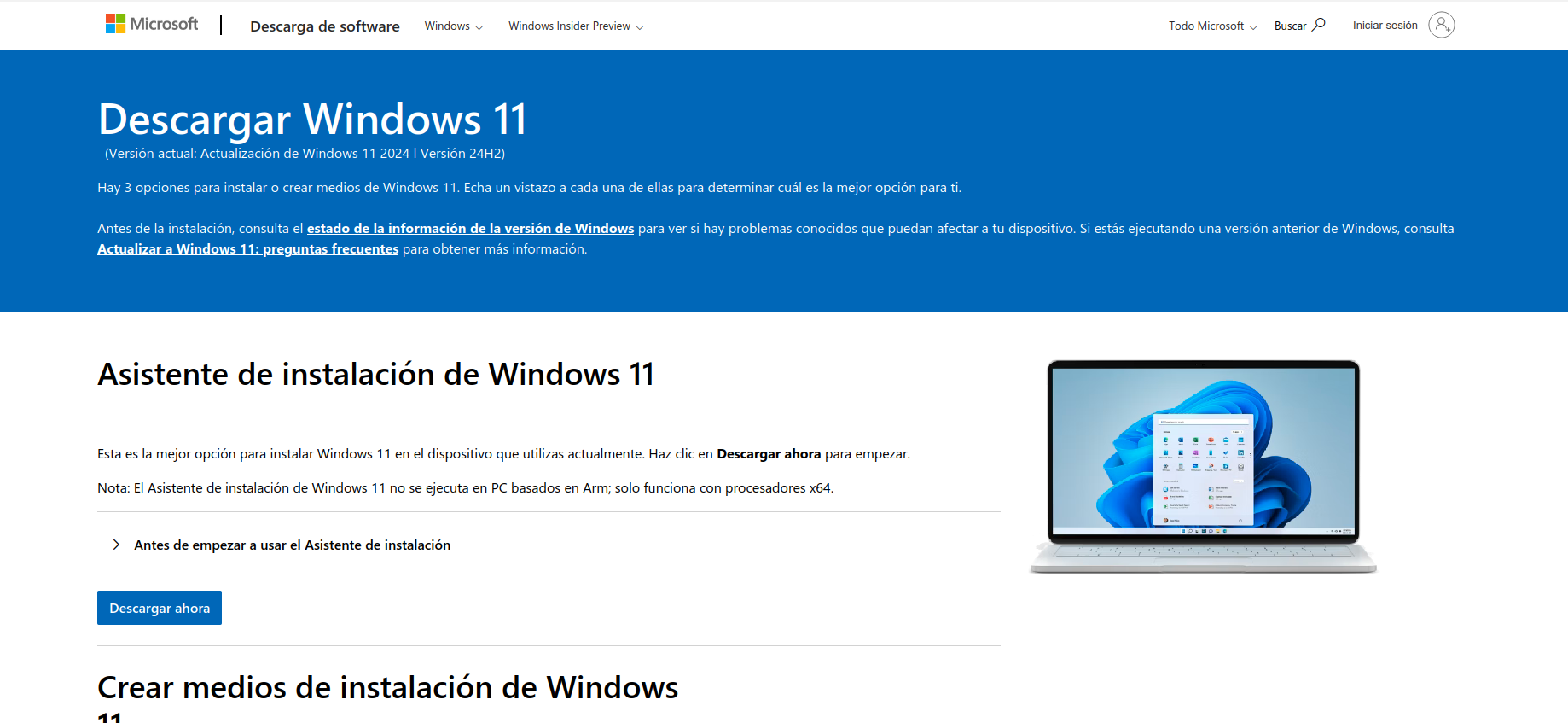
If you are thinking about upgrading or installing Windows 11 from scratch, one of the most sought-after and safest options is to download the official Microsoft ISO image. This method allows you to install the system on any compatible computer, perform clean installations, create bootable USB or DVD media, and retain the file for future installations, all with the assurance that you are using original, unmodified software.
This article gathers all the essential and updated information on how to download the official ISO of Windows 11 in Spanish, for both traditional x64 processors and ARM-based systems, covering in detail the requirements, steps, and important considerations you should keep in mind before, during, and after the process. Additionally, you'll learn about complementary solutions and tools to facilitate downloading, security recommendations, and different ways to create your own installation media.
Why download the official ISO of Windows 11?
Downloading an official ISO image is the most reliable and flexible way to install Windows 11. Not only do you ensure you're using safe, unaltered software, but you can also choose which device to install it on, prepare a bootable USB drive, or simply save the image for future use.
Opting for ISO offers advantages over other routes, such as updating directly from Windows Update or use of wizards:
- Allows for clean installations without remnants of previous systems.
- Facilitates reinstallation in case of formatting or changing disks.
- It is essential for creating bootable USB or DVD media.
- Offers more control over language, editing, and architecture.
Whenever you use the official Microsoft website, you'll avoid the risk of viruses, unwanted programs, tampered versions, and other problems associated with unverified sources.
Before you start: requirements and previous considerations
Before you start downloading and installing Windows 11, it is essential to check certain requirements and prepare your equipment to avoid surprises. Windows 11 is a demanding system that won't run on all older PCs, and Microsoft itself emphasizes the importance of meeting a number of minimum requirements. Furthermore, there are important differences between the version for x64 computers and the one specifically for ARM-based devices.
Minimum requirements for installation Windows 11
- Processor: 1 GHz or faster, with two or more cores, on a 64-bit compatible chip or SoC. For the special ARM edition, a 64-bit ARM64 processor is required.
- RAM: 4 GB.
- Storage: 64GB or higher.
- Firmware: UEFI compatible with Secure Boot.
- TPMs: Trusted Platform Module, version 2.0, required to enhance system security.
- Graphic card: DirectX 12 or later compatible with WDDM 2.x driver.
- Display: More than 9 inches with minimum HD resolution (720p).
- Internet connection and microsoft account: Essential for configuration Windows 11 Home and recommended for other editions.
Microsoft warns that installing Windows 11 on equipment that does not meet these requirements may result in failures, loss of support, lack of updates, and issues not covered by the warranty. Therefore, it is essential to verify that your equipment is suitable before proceeding:
- En Windows, open Settings > System > About or search for “System information” and check the “System type” to confirm it is x64 or ARM64.
- Check the official technical specifications on the Microsoft website to make sure your hardware is compatible.
It's also a good idea to visit your PC manufacturer's website to check driver compatibility and make sure there are no specific restrictions for your system.
Necessary files and previous recommendations
Before downloading, make sure you have:
- A stable and fast Internet connection. The ISO can be larger than 5GB, so a good speed will reduce download time and prevent interruptions.
- Enough space on your hard drive, USB or external drive. Reserve at least 8GB on the device where you will save the ISO.
- Empty USB of at least 8 GB if you're creating bootable media, or a blank 8GB DVD if you're opting for disc.
- Back up your important files. Both a clean install and an upgrade can put your previous data at risk. Make a full backup before proceeding.
How to download the official ISO of Windows 11 from Microsoft
The safest way to get the image is through the official Microsoft download page. From there, you can get either the traditional x64 ISO file or the version specifically for ARM64-based computers. The process is very similar in both cases, although each has its own specific details.
Step by step: download the ISO of Windows 11 for x64 processors
- Go to the official Microsoft website for downloads Windows 11: https://www.microsoft.com/es-es/software-download/windows11
- Scroll down to the "Download disk image" section. Windows 11 (ISO)».
- Click on the “Select Download” menu and choose “Windows 11 (multi-edition ISO)».
- Select your preferred language and click "Confirm."
- Click on “64-bit Download.” A temporary link will be generated valid for only 24 hours.
- The file will begin downloading. The duration will depend on the connection speed, as the size is approximately 5,2 GB.
Remember Windows 11 does not have 32-bit versions: it is only available for 64-bit processors. If your computer is older and only supports 32-bit, you won't be able to install this version.
Step by step: download the ISO of Windows 11 for ARM64 devices
- Visit the dedicated page for ARM64 devices: https://www.microsoft.com/es-es/software-download/windows11arm64
- Verify that your PC has a 64-bit ARM64 processor.
- Repeat the language selection and download process. The file is specific to this architecture.
Before installing on ARM devices, please see Microsoft's additional notes regarding hardware and driver compatibility.
Important notes about downloading
- The download link is temporary and only valid for the next 24 hours.
- Do not download the ISO from unofficial sites or P2P networks. You may be exposed to altered software, viruses, or unsupported versions.
- If the download is interrupted, you will need to repeat the process by generating a new temporary link.
How to mount and use the ISO image of Windows 11
Once you've downloaded the ISO, you can use it in several ways: mount the file on your own system; create a bootable USB or DVD; or even use it for virtual machine installations.
Mount and update from the ISO image
If you prefer to install directly from the ISO image, you can easily do so at Windows:
- In File Explorer, locate the downloaded ISO.
- Right click on the file and select "Properties."
- On the "General" tab, click "Change" under "Open with" and select "Windows Explorer". Windows». This will use the native browser instead of alternative programs.
- Right-click on the ISO again and select “Mount.” It will appear as a virtual drive.
- Go to the new drive, find the “setup.exe” file, and run it. This way you can start the upgrade from your current system to Windows 11.
- Follow the instructions in the installation wizard. You can choose whether you want to keep files or do a clean install.
Windows 11 24H2: All the news, issues, and step-by-step instructions for updating
Create a bootable USB or DVD with the ISO
To install Windows 11 on another computer or perform a completely clean install, it is best to create bootable media.
Steps to create a bootable USB
- Prepare an empty USB flash drive of at least 8 GB. Remember that all existing data on it will be deleted.
- Use a tool like Rufus or Microsoft's own official media creation tool.
- Follow the instructions to select the downloaded ISO and create the USB.
- Once created, insert the USB into the PC where you want to install Windows 11 and restart it.
- Access the boot menu (usually F2, F12, ESC or Del as soon as you turn on your computer) and choose to boot from the USB drive.
- Follow the installation wizard.
Steps to create a bootable DVD
- Insert a blank DVD of at least 8 GB into the burner.
- Right-click on the ISO file and select “Burn Disc Image.”
- Follow the instructions of the recorder Windows or any other specific program.
- Once burned, boot your computer from the DVD and follow the usual installation process.
https://www.polimetro.com/como-crear-un-usb-bootable-con-windows-11/
Alternative tools and complementary utilities
In addition to the above methods, Microsoft offers other tools to make updating or reinstalling your Windows 11. There are also third-party programs that will help you download and manipulate the ISO.
Installation Wizard Windows 11
This is the recommended option if you want to upgrade the computer you currently work on and it meets all the requirements.
- Go to the Microsoft downloads page.
- Download the Installation Wizard Windows 11.
- Run the tool as an administrator and follow the on-screen steps.
This option does not allow you to create installation media or download the ISO, but rather upgrade directly to the new version.
Media Creation Tool Windows 11
Perfect for those who want to prepare a bootable USB or save the ISO for another computer:
- Download the official tool from the Microsoft website.
- Run as administrator, accept the terms, and choose “Create installation media for another PC.”
- Select language, edition, and architecture (the system automatically detects the recommended architecture, but you can force 64-bit if needed).
- Choose whether to create a bootable USB media or save an ISO file to your computer.
- Follow the instructions until the process is complete.
Third-party utilities: EaseUS OS2Go and Win11 Builder
There are programs like EaseUS OS2Go and Win11 Builder that make it easy to download the ISO and create bootable USB drives for Windows 11 and other Microsoft versions. Among its advantages are:
- Direct download of the ISO from Microsoft.
- Automated USB media creation, including support for computers without Secure Boot or TPM.
- Easy system migration to different devices.
These tools are ideal if you're looking for an all-in-one solution and don't want to mess with manual configurations.
Safety and backup recommendations before installation Windows 11
Installing or updating an operating system always involves certain risks, especially when it comes to personal data, programs, and previous configurations. So, before continuing:
- Back up all your important files and documents. You can use cloud solutions, external hard drives, or automated backup tools.
- Save the installers for your essential programs; some will need to be reinstalled after the update.
- If you have a lot of critical data, consider creating a full disk image with specialized programs.
In case of data loss due to incompatibility or any failure during the update, there are programs like EaseUS Data Recovery Wizard that can help you recover deleted or lost files.
Frequently asked questions about downloading and installing the ISO Windows 11
What edition do I get when I download the official ISO?
The ISO downloaded from Microsoft is multi-purpose (multi-edition). This means that after installation, you'll need to enter your product key to unlock the corresponding edition: Home, Pro, Education, etc.
How long does the download take and is it free?
It depends on the speed of your connection. Using fiber optics, it can be completed in minutes, but with medium or slow connections, it could take hours due to the ISO size. The download from the official Microsoft website is free, but you must have a valid license to activate it. Windows after installing it.
Can I install Windows 11 on a 32-bit computer?
No. Windows 11 is only available in versions for 64-bit architectures. There is not, nor will there be, a 32-bit version for this operating system.
What happens if my equipment does not meet the requirements? Windows 11?
Microsoft advises against installing on unsupported computers. If you decide to force it (either with the ISO or with alternative wizards), your PC will no longer receive support, you will not be eligible for updates, and any failure will not be covered by the warranty.
How do I burn the ISO to a USB or DVD?
For USB, use programs like Rufus. You just have to select the ISO, the USB and follow the wizard. If you choose DVD, from the context menu itself Windows you can choose the option to burn disk image.
What language versions are available?
You can choose the language of the ISO during the download process. Choose Spanish or another language of your choice. Remember that the language you choose will be the default during installation, although you can add new language packs later.
What do I do if the USB or DVD doesn't appear when I start my computer?
You may need to access the BIOS/UEFI and change the boot order, or temporarily disable Secure Boot. Consult your equipment manufacturer's manual or website for specific instructions.
How do I mount the ISO on a virtual machine?
Simply create a new virtual machine in software like VirtualBox o VMware and select the ISO as the boot media. So you can try Windows 11 without affecting your current installation.
Important warnings and support
Always download the ISO from official sources. Install Windows from an unverified image exposes your data and privacy to serious risks.
If you have questions about compatibility or encounter problems during the process, contact official Microsoft technical support or consult the information on your computer manufacturer's website.
Remember that for Surface devices, Microsoft offers specific pages to download updated drivers and firmware.
Have the official ISO image of Windows 11 and knowing the correct steps for downloading and using it allows you to install the Microsoft operating system in the most secure, flexible, and customized way possible. By following the recommendations and steps detailed here, you can perform clean installations, updates, or prepare recovery media, all while minimizing risks and keeping your data safe. If after reading this you have questions about compatibility, drivers, or the burning process, don't hesitate to consult Microsoft's support guides or the specialized tools we've shown you. Staying up-to-date guarantees a more secure and efficient environment, so don't miss the opportunity to take advantage of all the benefits of Windows 11.

Experts in software, development, and applications for industry and home use. We love leveraging the full potential of any software, program, app, tool, and operating system on the market.